MCP
Learn how to connect your AI tool to GroWrk using MCP (Model Context Protocol).
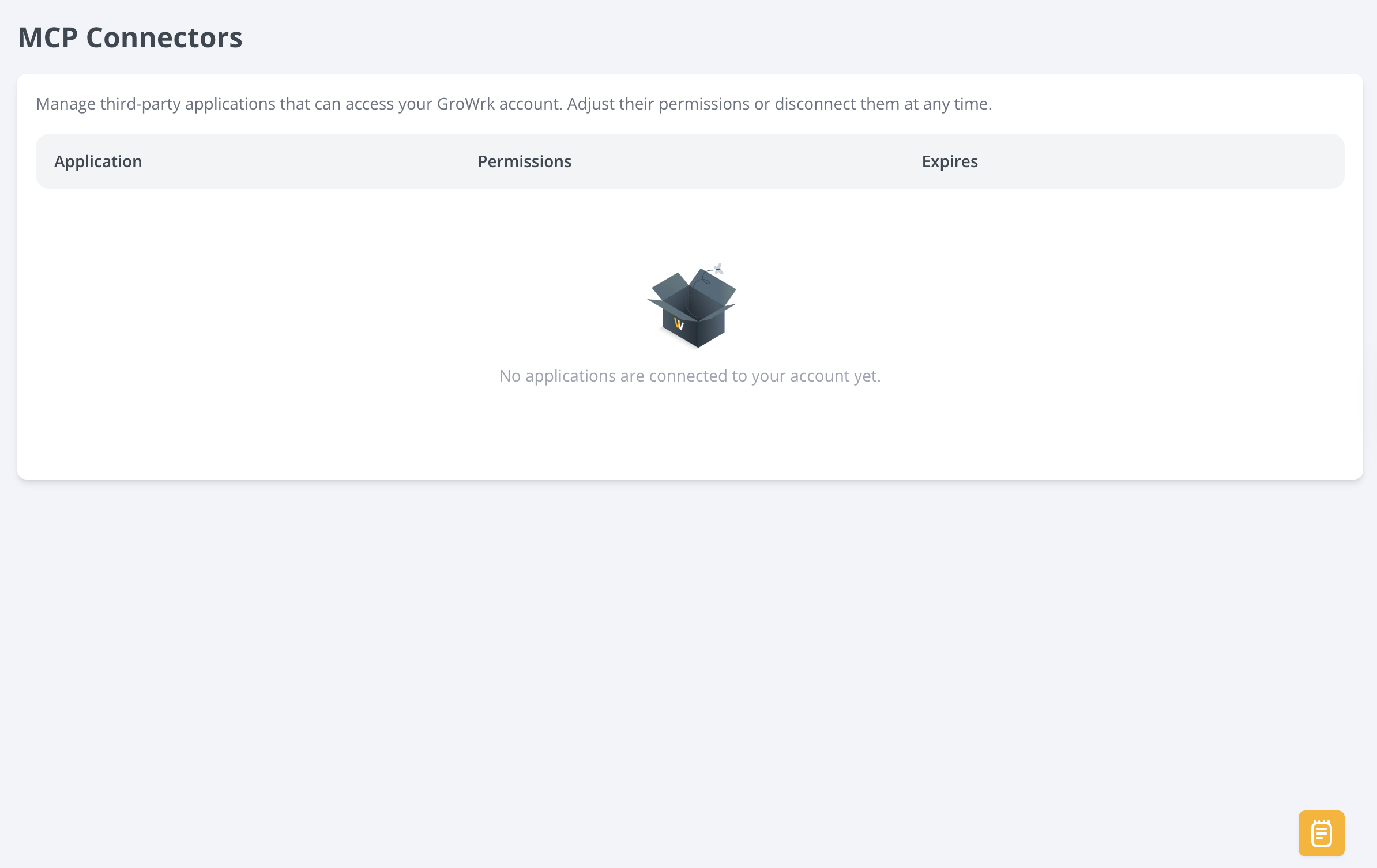
In the Connections section of the navigation bar, select the MCP Connectors tab. This is where all your connected applications will be listed and can be managed.
Claude Desktop
Please note that only organizational owners or primary owners can add custom connections in Claude Team and Enterprise plans.
Connect your account
- In Claude, go to Settings.
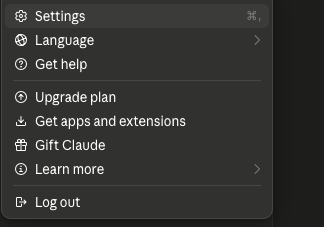
- Go to Connectors > Customize > Add a custom connector.
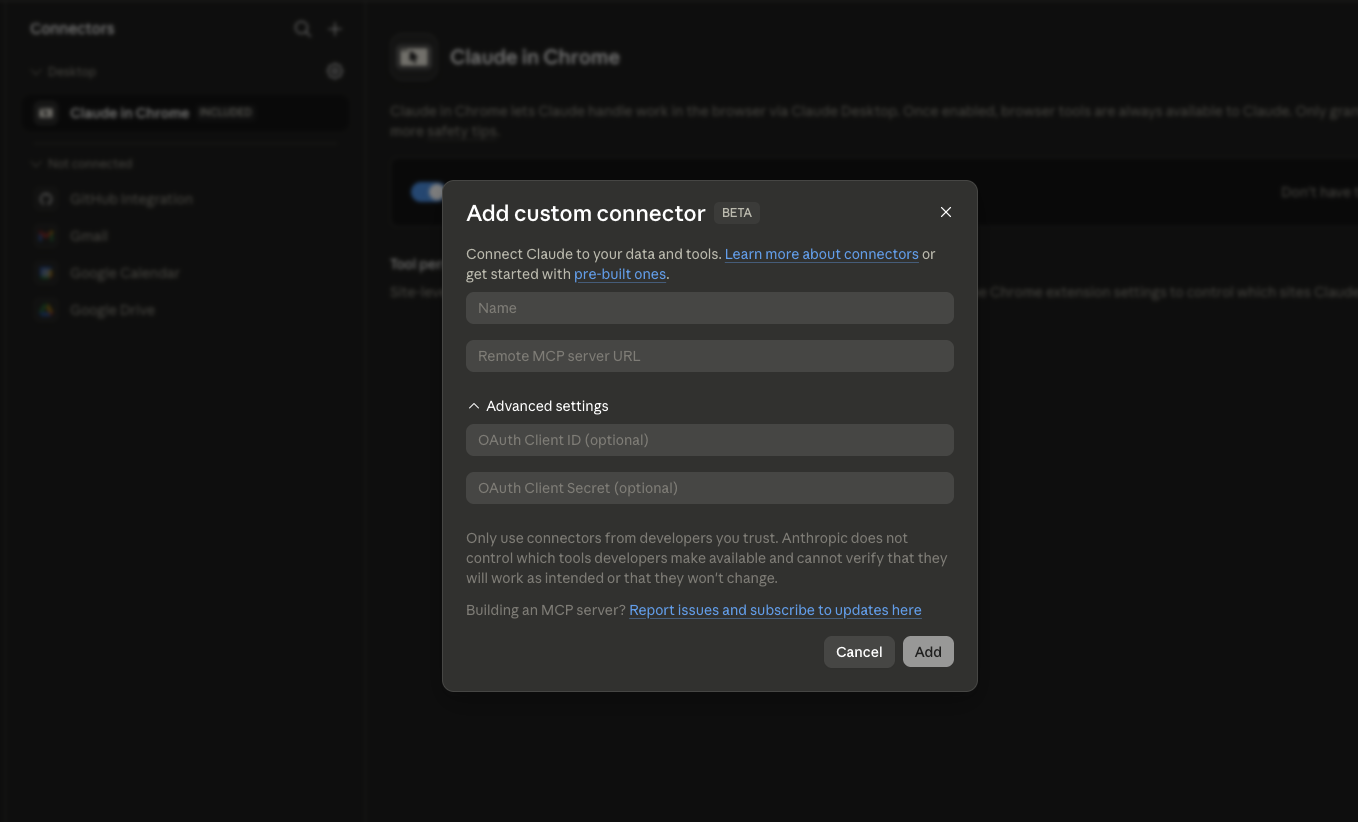
- Enter a name for the connector. In the Remote MCP server URL field, enter the following link:
https://ai.growrk.com/mcp. Then select Add.
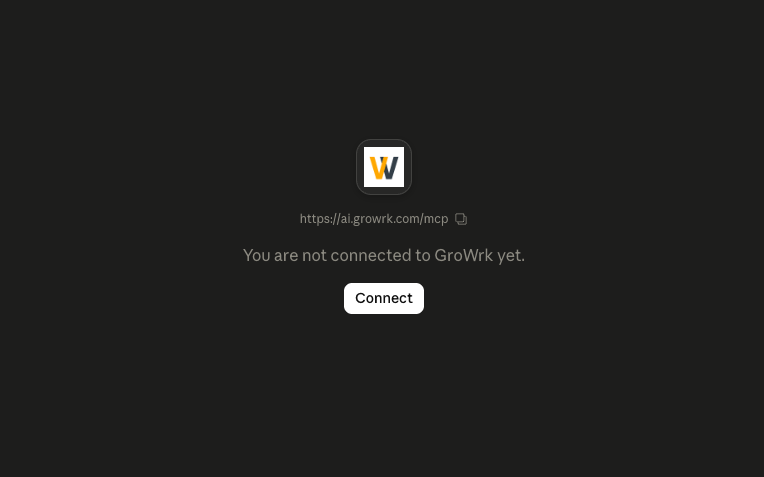
- Select Connect. You will be navigated to the GroWrk login page.
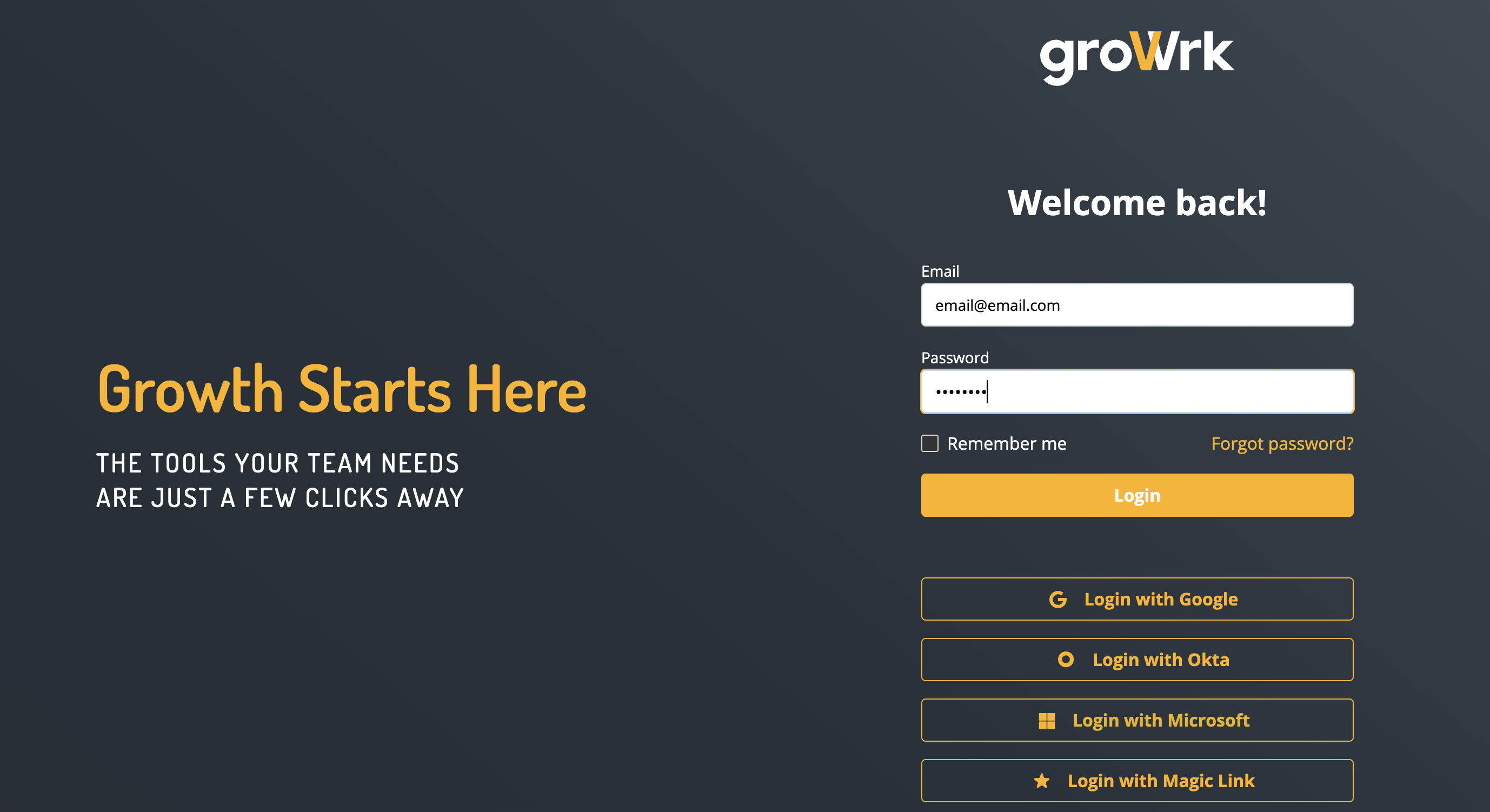
- Enter your GroWrk credentials.
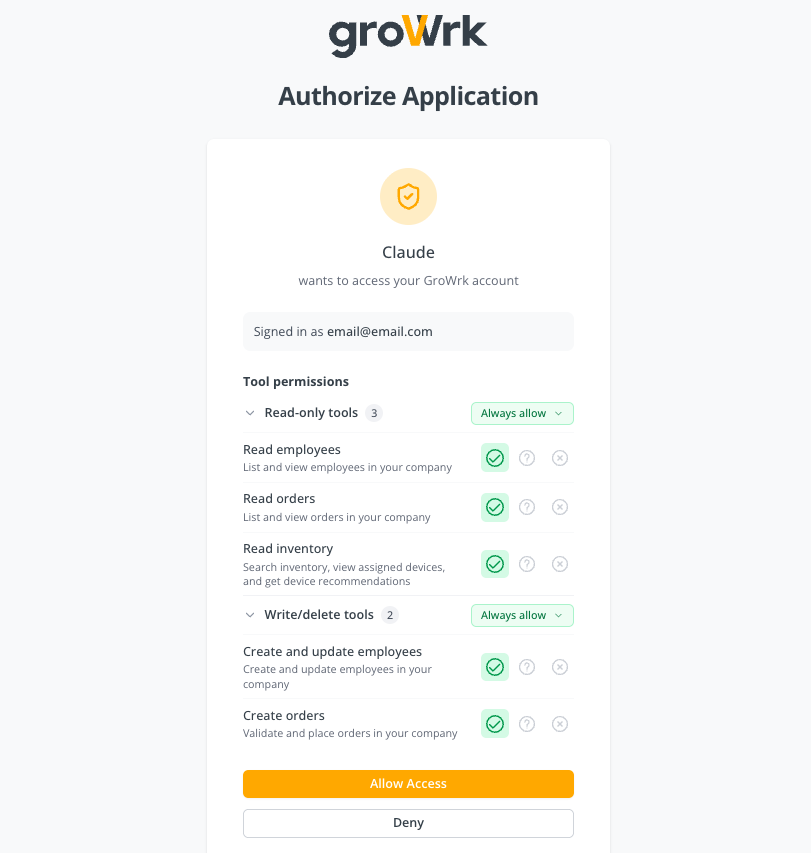
- To authorize the connection, set your permissions. GroWrk groups access into scopes — read employees, write employees, read orders, write orders, and read inventory. Grant the scopes you want the AI tool to use, then select Allow Access. You'll be redirected back to Claude once connected.
Other AI tools
GroWrk MCP works with Claude Code, Cursor, ChatGPT, and any MCP-compatible client. For step-by-step setup instructions for each tool, visit connect.growrk.com.
Whichever tool you use, the connection details are the same:
- Name: GroWrk MCP
- URL:
https://ai.growrk.com/mcp
Sign in with your GroWrk credentials when prompted — your role and granted scopes determine which tools are available.
Configure permissions
You can also configure the tool permissions within the GroWrk connector page.
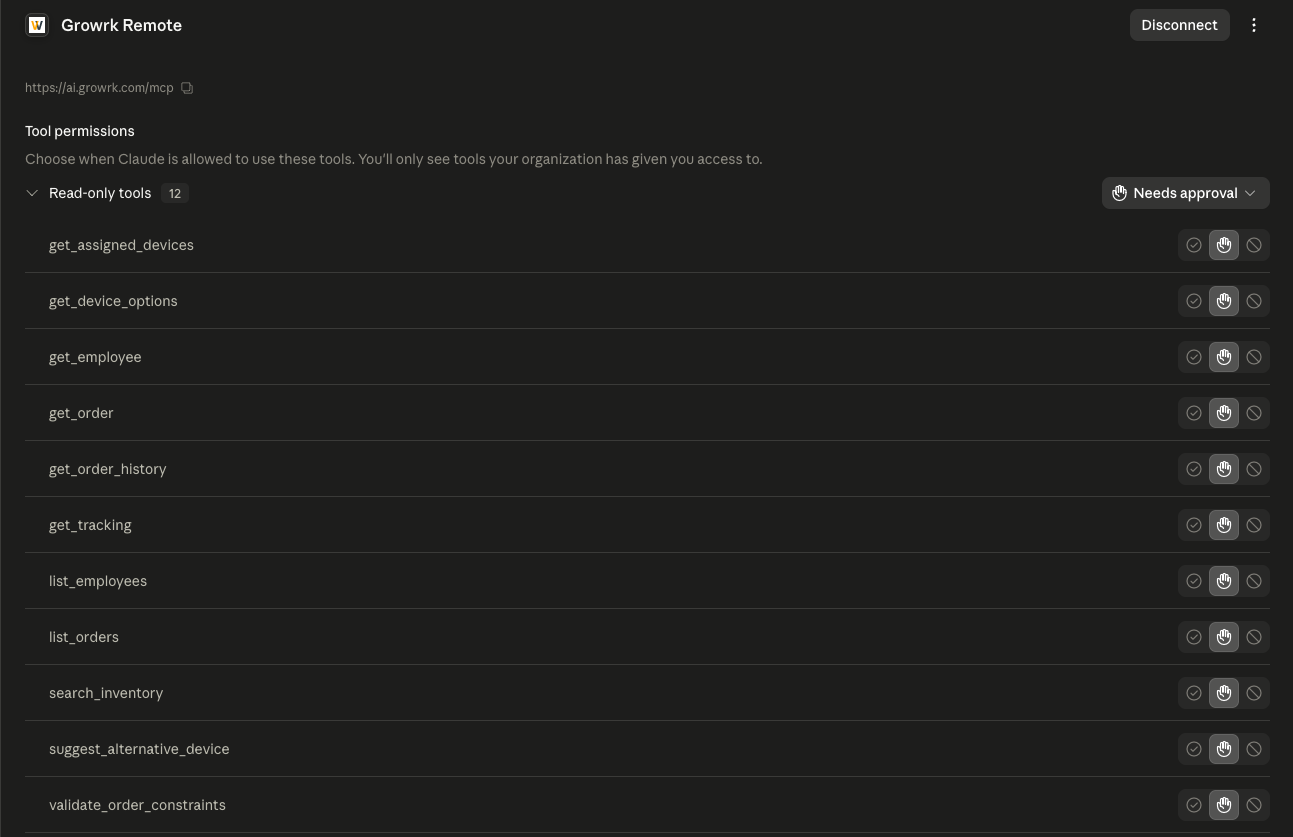
Back in the GroWrk MCP Connectors page, you can view your connected applications, the scopes available, and when each connection expires.
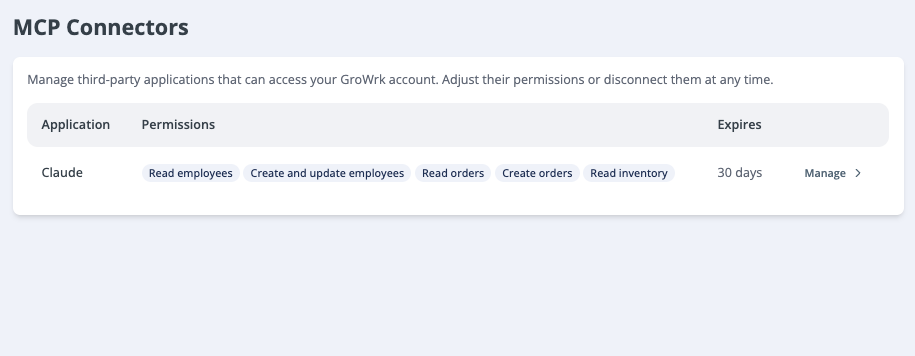
Select the application in the table, then you can manage the tool permissions from GroWrk as well.
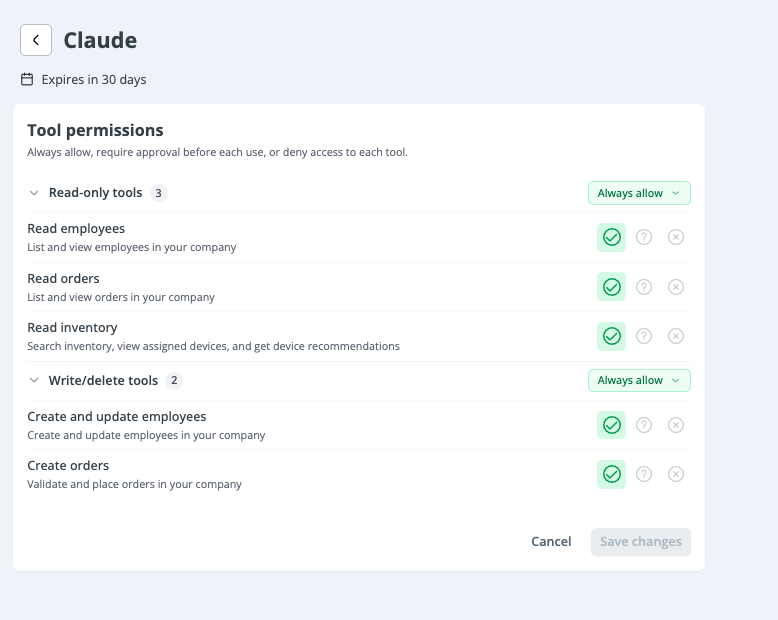
Available tools
GroWrk's MCP exposes tools across employees, orders, tracking, and inventory. They're grouped below by read-only vs. write access. Write tools require the matching write scope and ask for your approval before they run.
Read-only tools
| Tool | Function | Example prompts |
|---|---|---|
| Who am I | View the connected user and their access level | "Who am I connected to GroWrk as?" |
| Read employees | List/search employees and view a single employee's details (including delivery address) | "List the 10 newly onboarded employees" / "Show me Jane Doe's details" |
| Read orders | List/search orders and view a single order with its full hierarchy | "List the last 10 orders" / "List all orders that are In Progress" |
| Order history | View an order's full event history and per-device timeline | "Show the history for order ABC123" |
| Validate order | Check whether an order type can be placed for an employee before creating it | "Can I place a deployment for Jane Doe?" |
| Tracking | View shipment tracking for an order, merged with live courier data | "Where is the shipment for order ABC123?" |
| Search inventory | Search your company's device inventory with filters (category, country, status, in-stock) | "Show available laptops in stock in the US" |
| Assigned devices | List the devices currently assigned to an employee | "What devices does Jane Doe have?" |
| Device options | List available device options ranked by spec and availability | "What laptop options are available for a new hire in the US?" |
| Suggest alternative device | Suggest purchasable alternatives when a device is unavailable | "Suggest an alternative to the MacBook Pro 16 for Germany" |
Write tools
These require the relevant write scope and ask for your approval before running.
| Tool | Function | Example prompt |
|---|---|---|
| Create employee | Add a new employee. Provide the employee Name, Email, Team, Country, and Company. | "Create a new employee. Name: Jane Doe, Email: janedoe@example.com, Team: Product, Country: US, Company: Example Inc." |
| Update employee | Update an employee's editable fields (name, email, department, division, job title, team, delivery address) | "Update Jane Doe's team to Product" |
| Create order | Place an order — Deployment, Offboarding, Collection, Maintenance, or Swap from Inventory | "Place a deployment order for Jane Doe" |
| Add power accessory | Request a replacement charger for a device on an existing order (within 24 hours of placing it) | "Add a replacement charger to order ABC123" |