Justworks
Learn how to integrate your Justworks account with GroWrk to improve your HR workflow.
Connect your account
- Choose whether to sync all your data or use filters to curate the data that is synced to your GroWrk account.
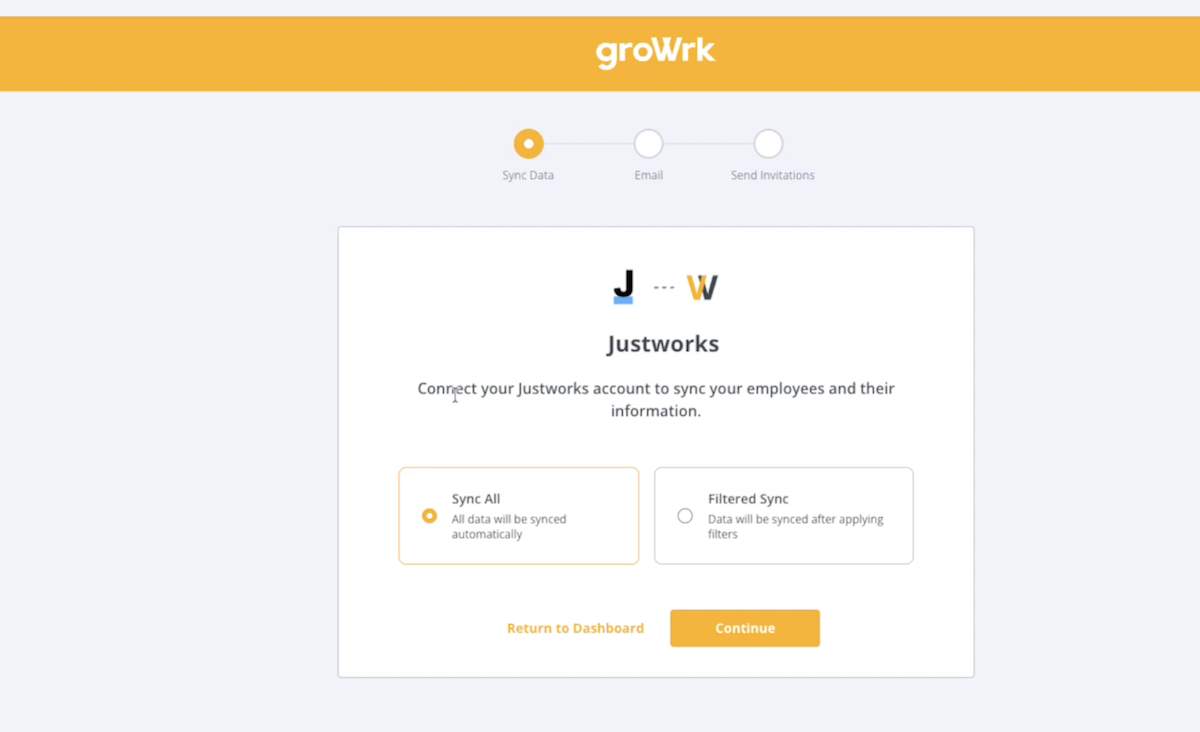
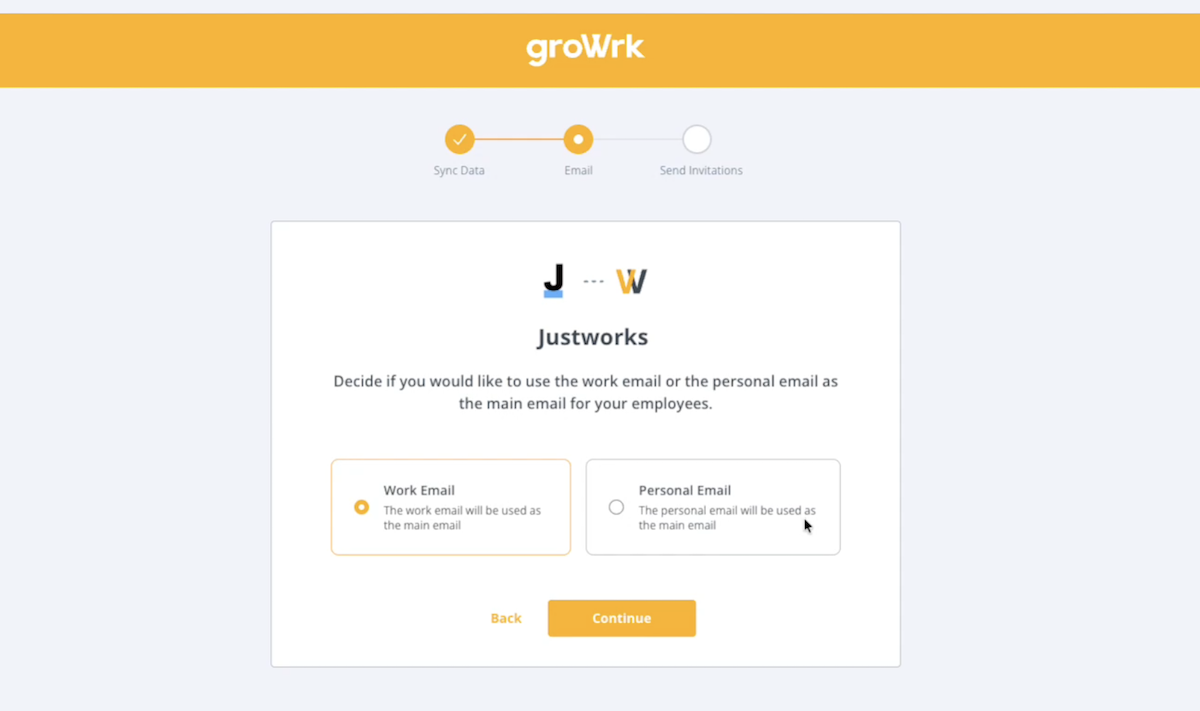
- Choose whether to use your employees’ work or personal emails as their main email. Select Continue.
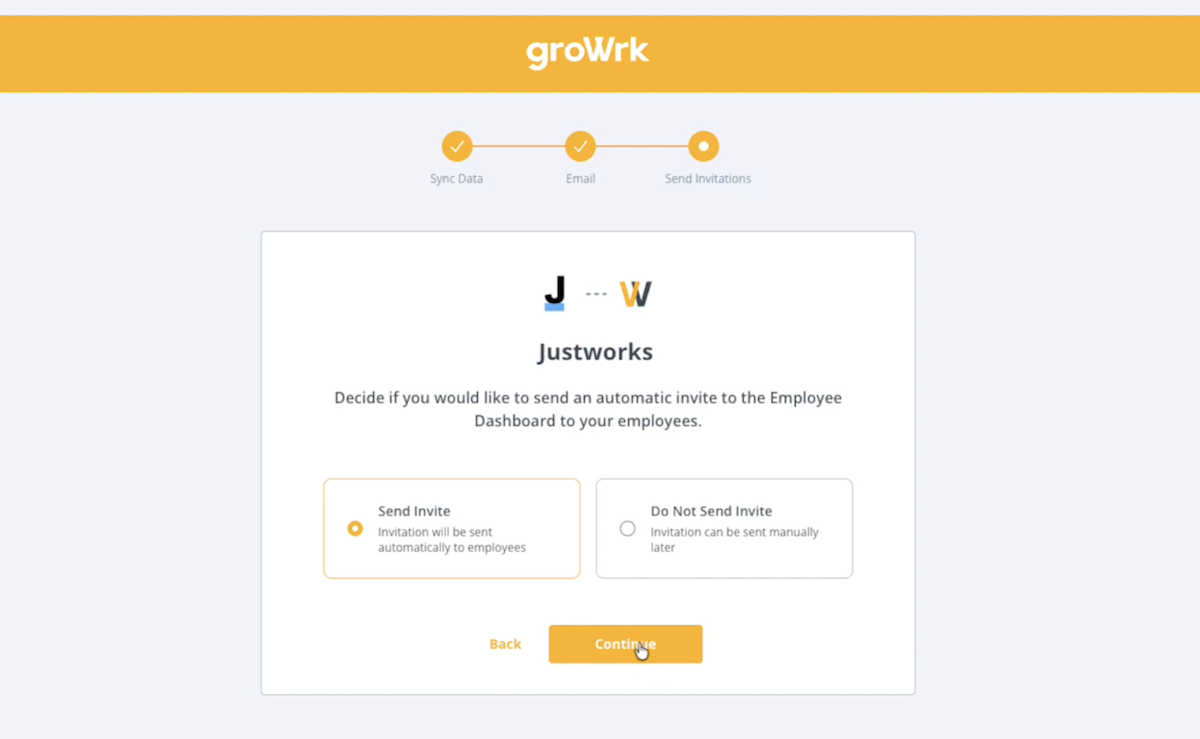
- Choose whether to send invitations to the Employee Dashboard for your employees to access product updates and confirm package deliveries.
- You’ll be redirect to Justworks to connect your account.
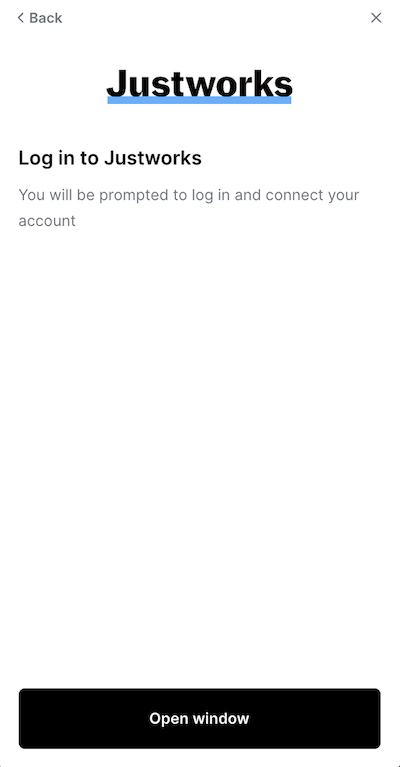
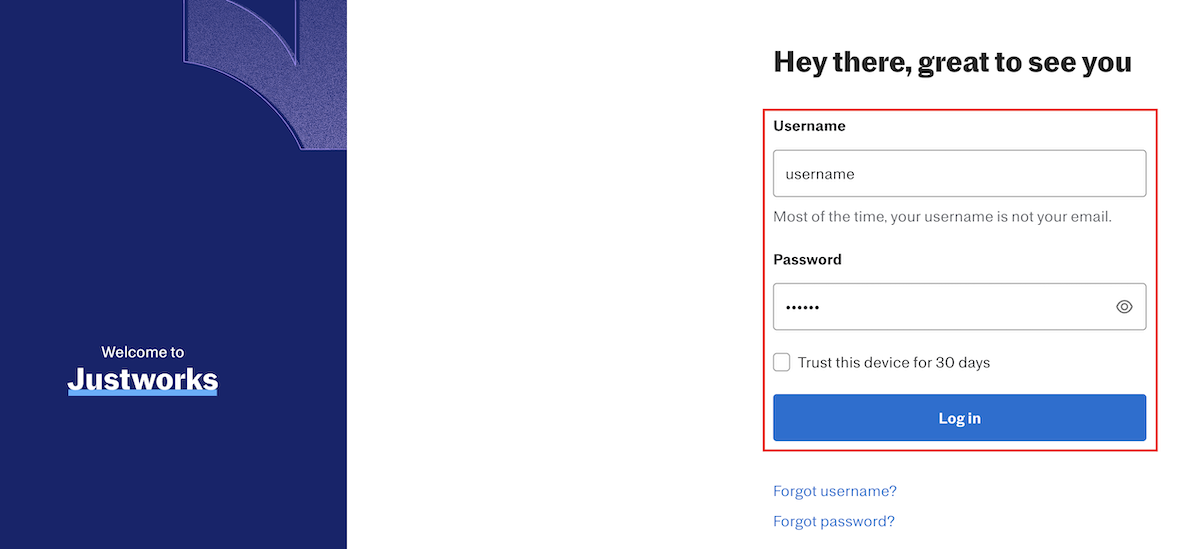
- Sign in with your account credentials.
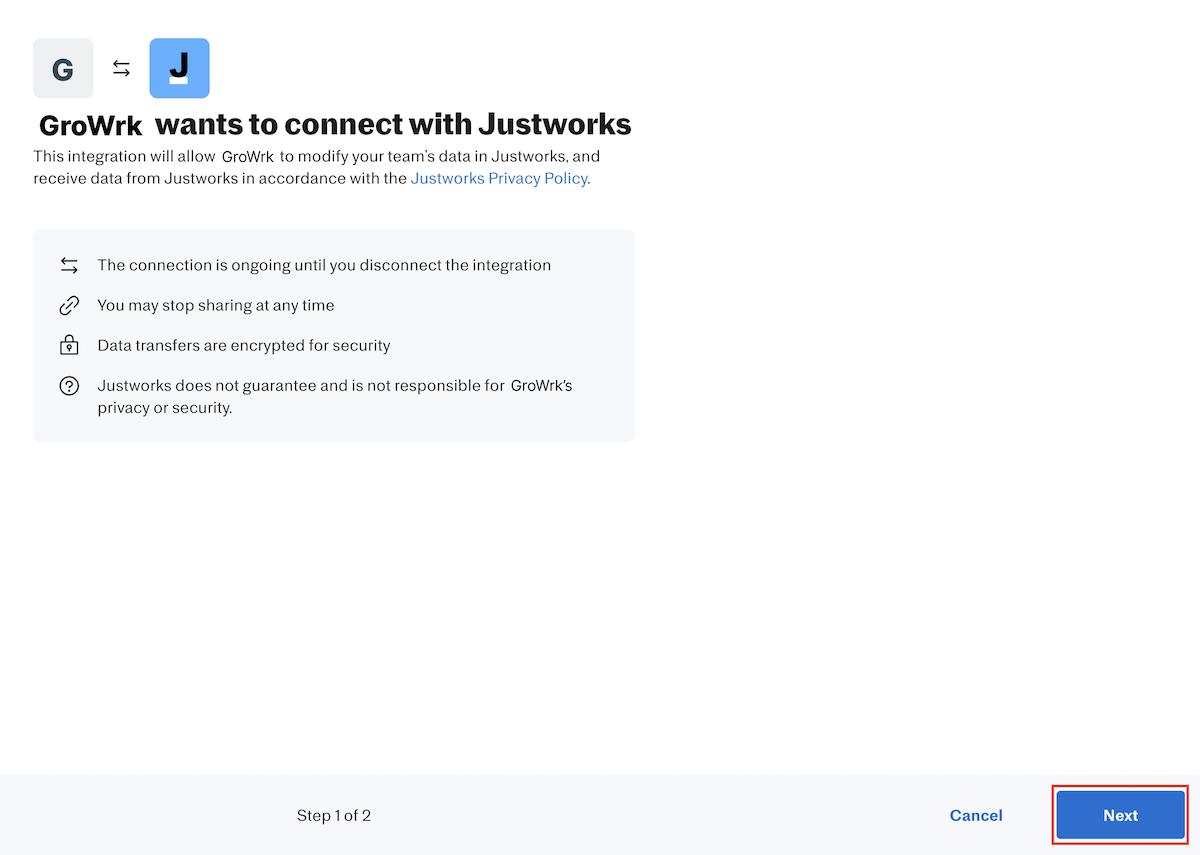
- Connect GroWrk to Justworks by selecting Next.
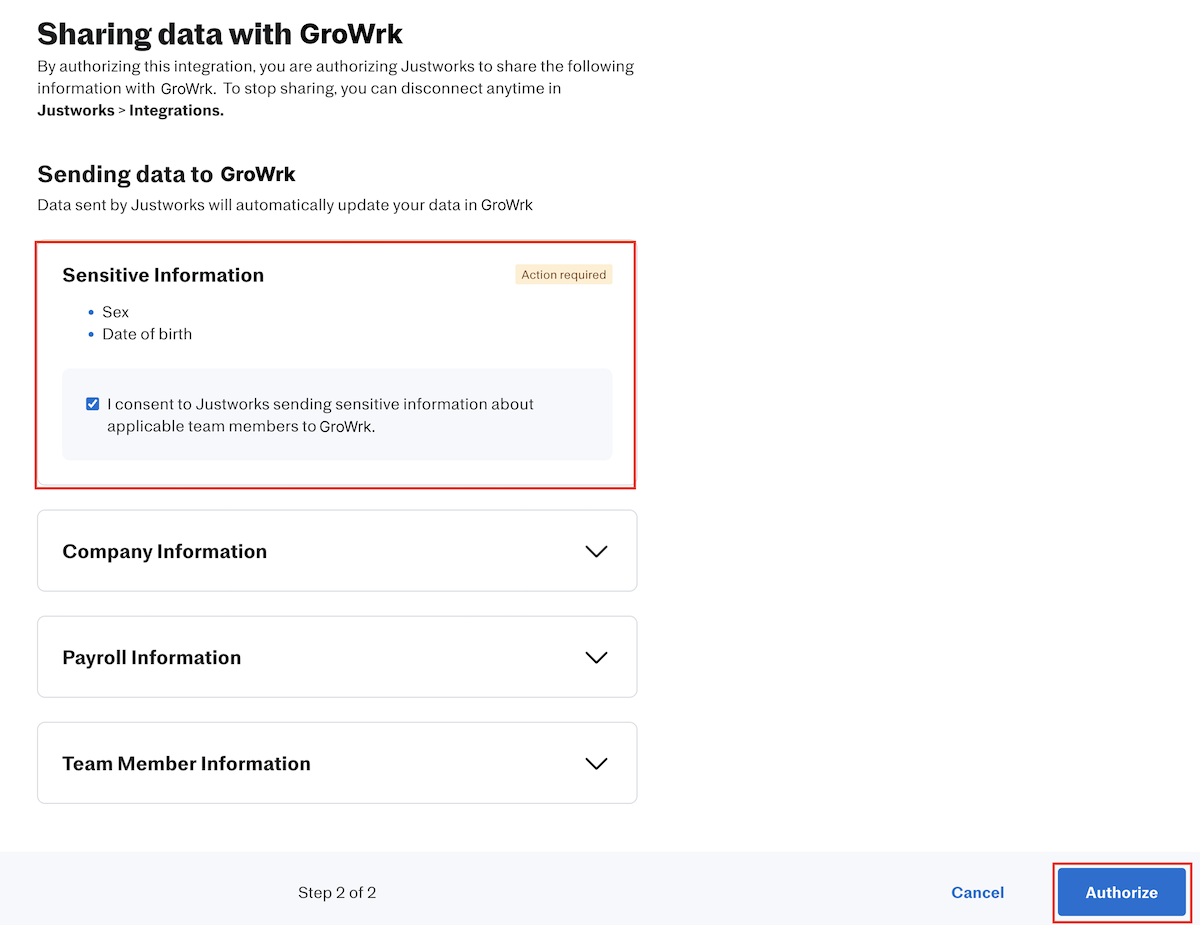
- Review the company data that will be shared with GroWrk, then select Authorize.
Filters
If you choose to filter your sync, you’ll be redirected to the Integrations Setup page, and there will be 4 different filters to apply to your data:
- “Countries” allows you to select countries you’d want to include or exclude in your synced data.
- “Teams” allows you to select the teams within your company that you’d want to include or exclude in your synced data.
- “Status” allows you to filter by active or inactive devices within your inventory.
- “Employment” allows you to filter by employment status (full-time, part-time, contractor, etc.).
These filters are designed to be cross-referenced. Whether you’re looking to import data of your employees on a specific team located in a certain region, or any other parameter, these new filters are designed to refine your company data to your preference.
Synced fields
The following fields are synced from Justworks to GroWrk:
- Full preferred name (Syncs with Name)
- Work email
- Personal email
- Phone
- Address
- Department (Syncs with Team)