Purchases
Learn how to make three types of purchase orders in the Marketplace.
- Purchase for Employee: Purchase products to send directly to an employee’s address.
- Purchase for Inventory: Purchase products to store in the warehouse as available inventory for future use.
- Office Purchase: Purchase products to send directly to one of your saved office addresses.
Marketplace access
To start a purchase order, you can access the Marketplace directly through the Marketplace tab in the navigation bar, or through these specific pages.
For Purchase for Employee:
- Employee profile
- Teams page
- Home page
For Purchase for Inventory:
- Inventory page
- Home page
For Office Purchase:
- Offices page
- Office Inventory page
- Home page
Place order
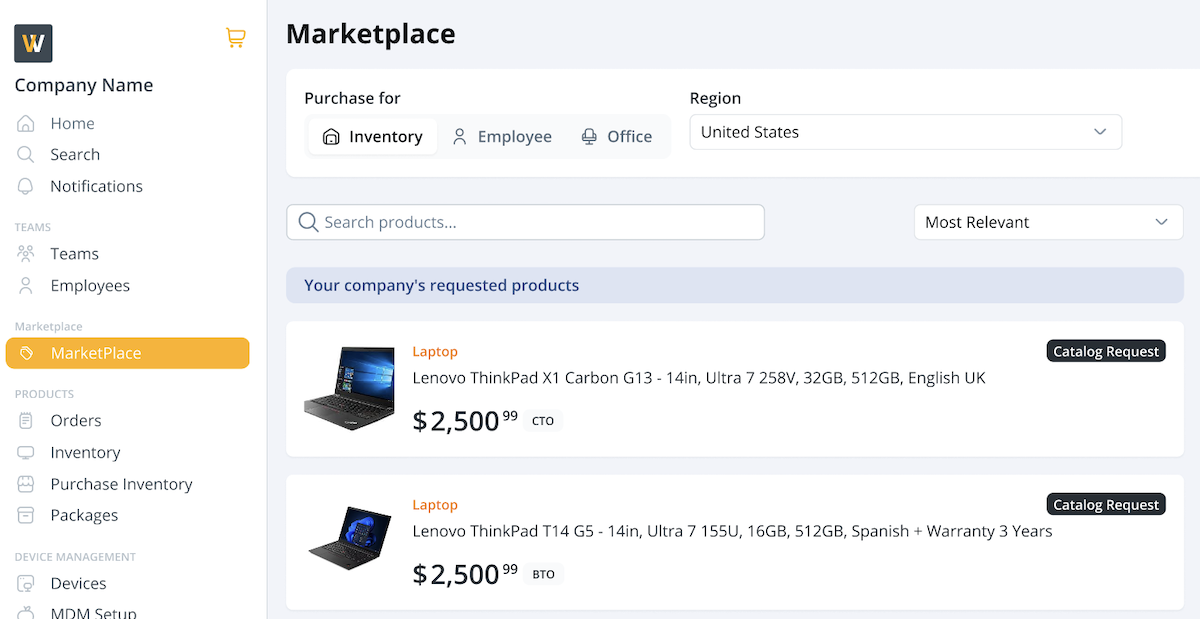
- In the Marketplace, select a purchase type. If you select Purchase for Inventory, you will need to specify the region. If you select Purchase for Employee or Office, you will need to select a specific employee or office.
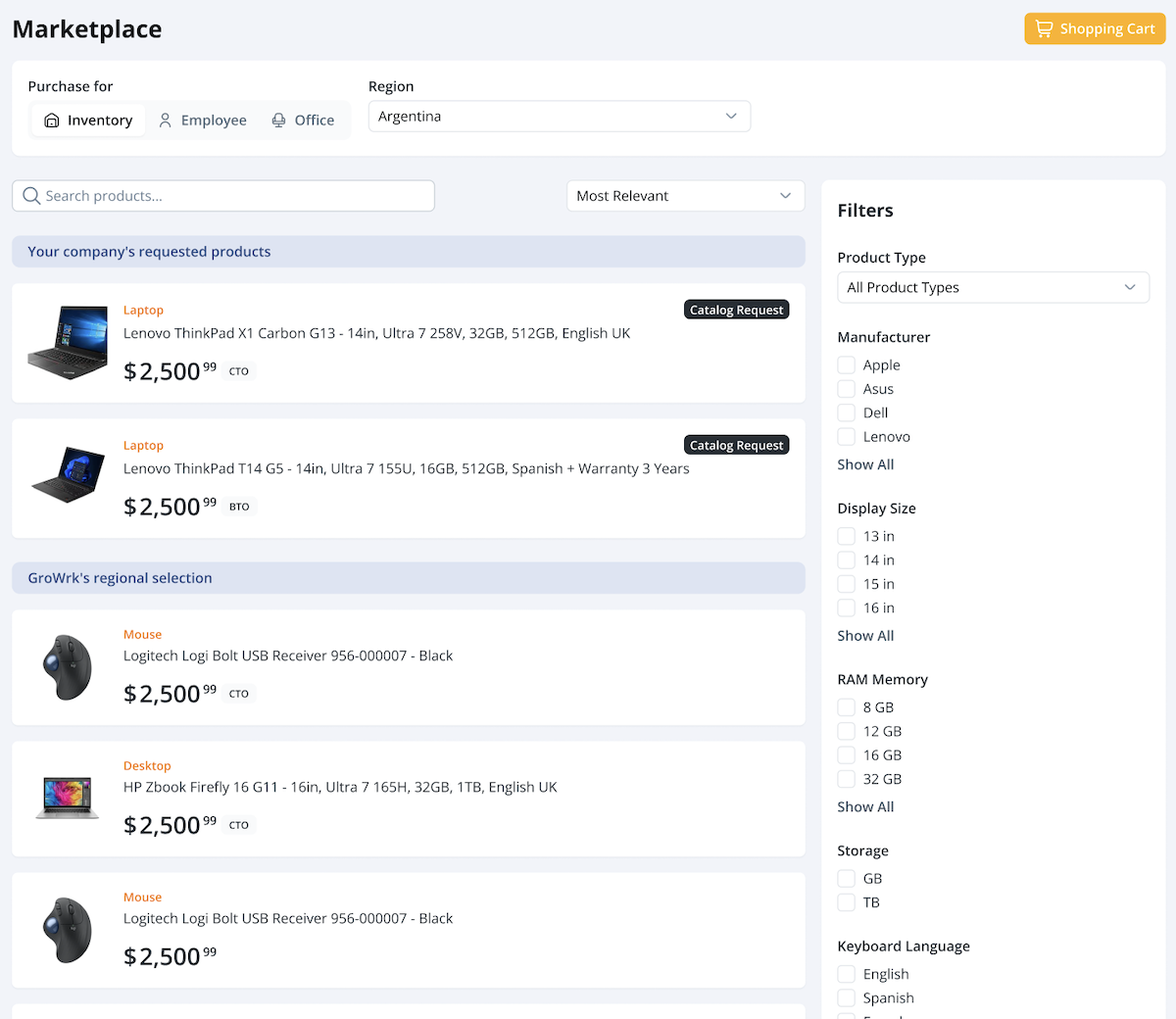
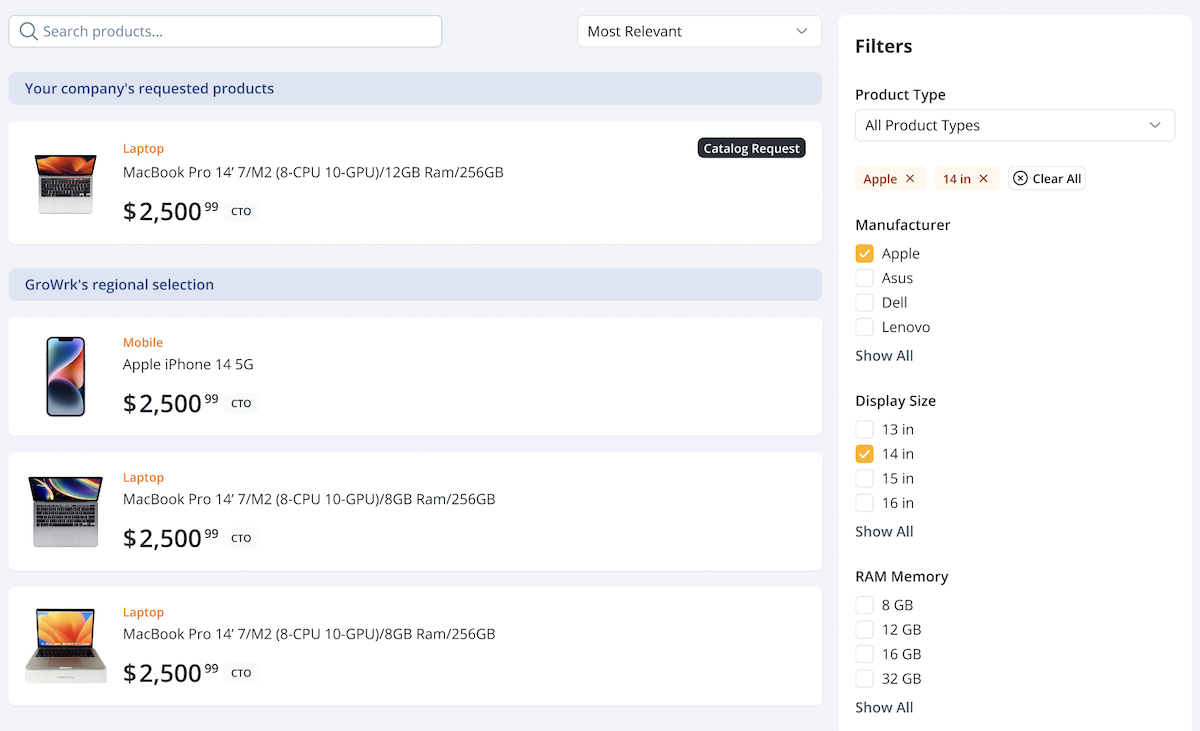
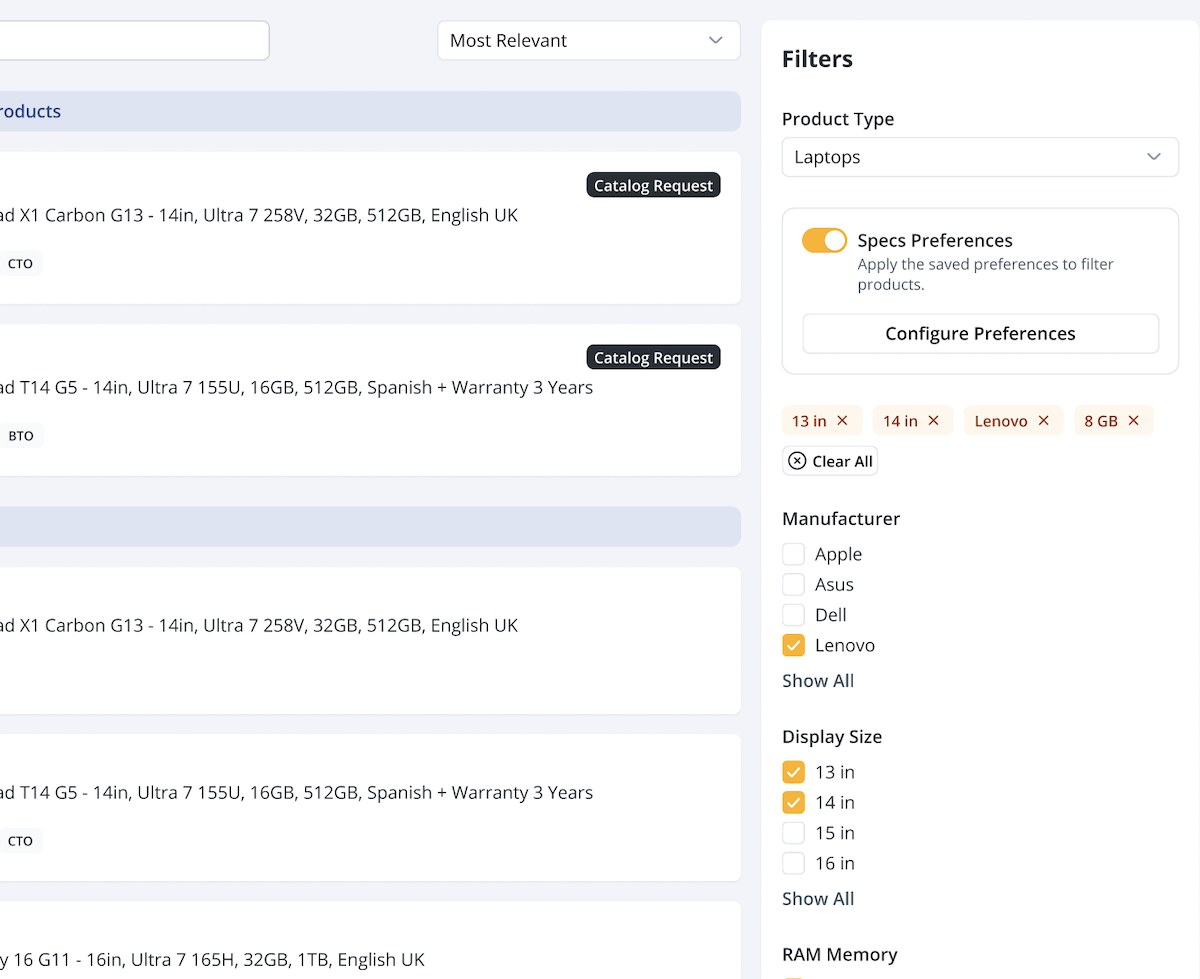
- Use filters to narrow product results or use the search bar for a specific product. As you select filters, the product options displayed will update dynamically to reflect the selected filter.
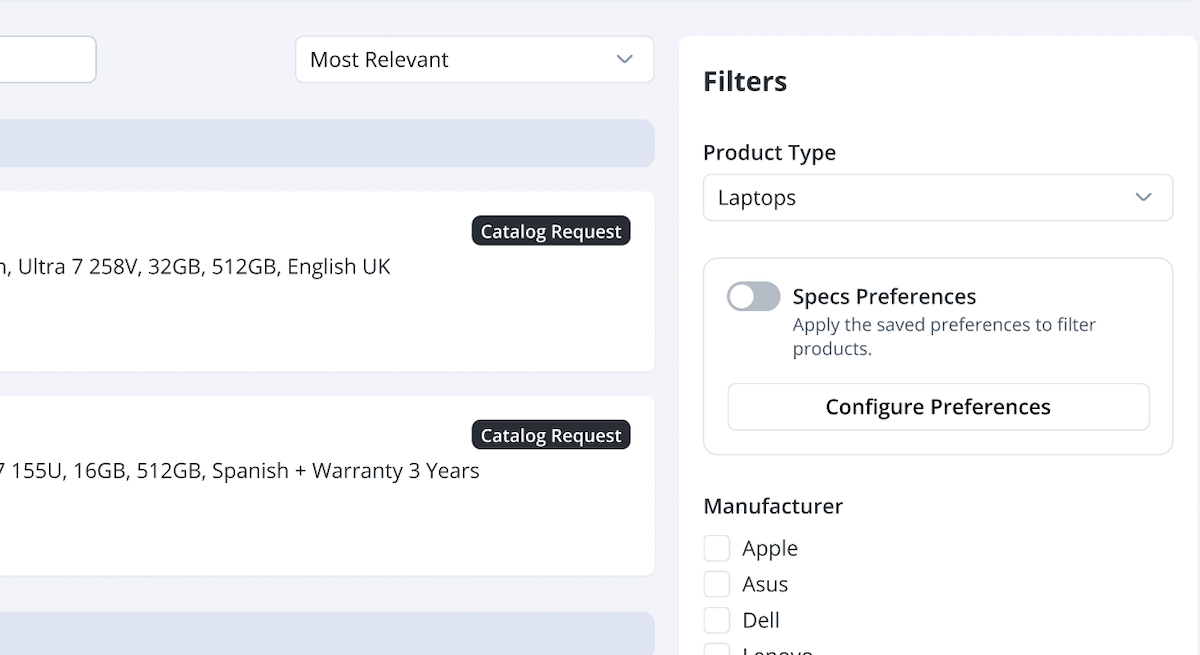
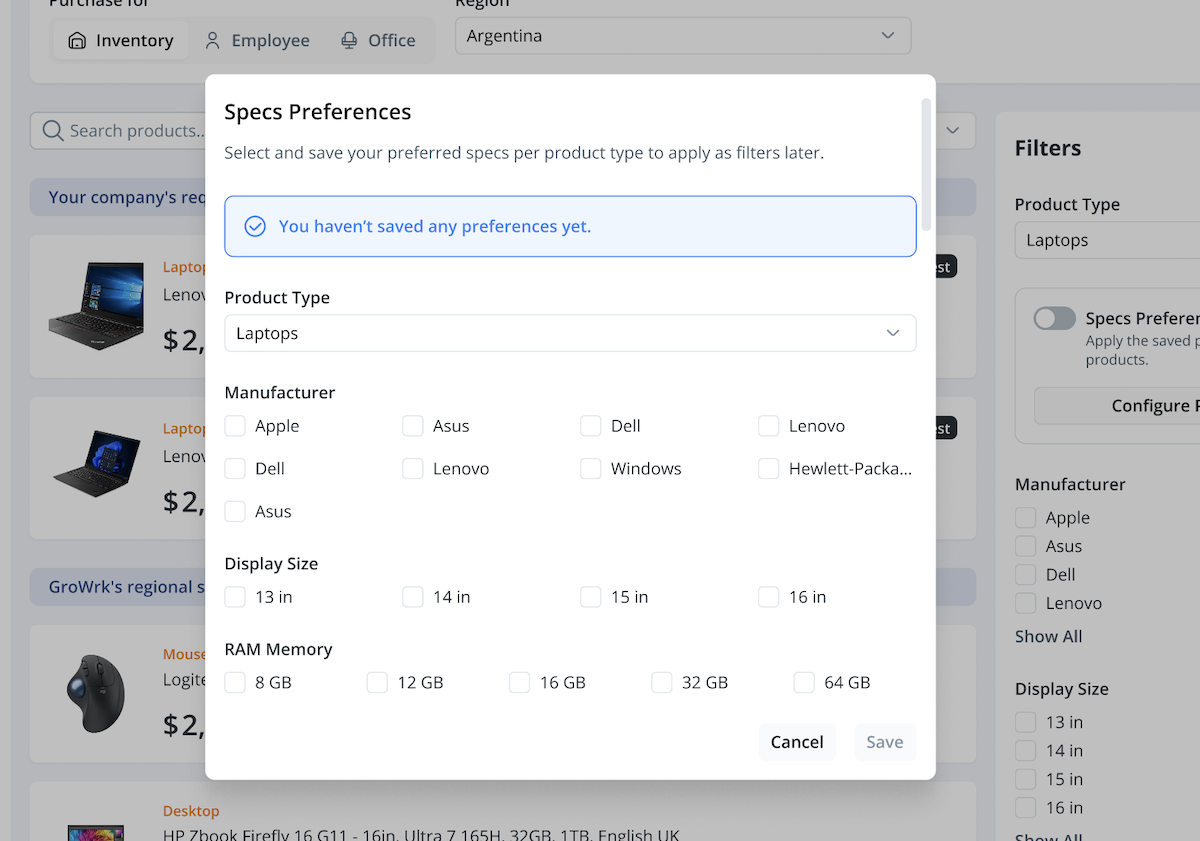
- If you filter by product type, you can configure and save your preferred specs to always display your preferred product options. Select Configure Preferences.
- Select a product type and use the checkboxes to select your specs preferences. You can configure multiple product types before selecting Save.
- To apply your saved preferences, use the Specs Preferences toggle. This will filter the product options listed in the Master Catalog. You can remove all filters by using the toggle again or the Clear All button.
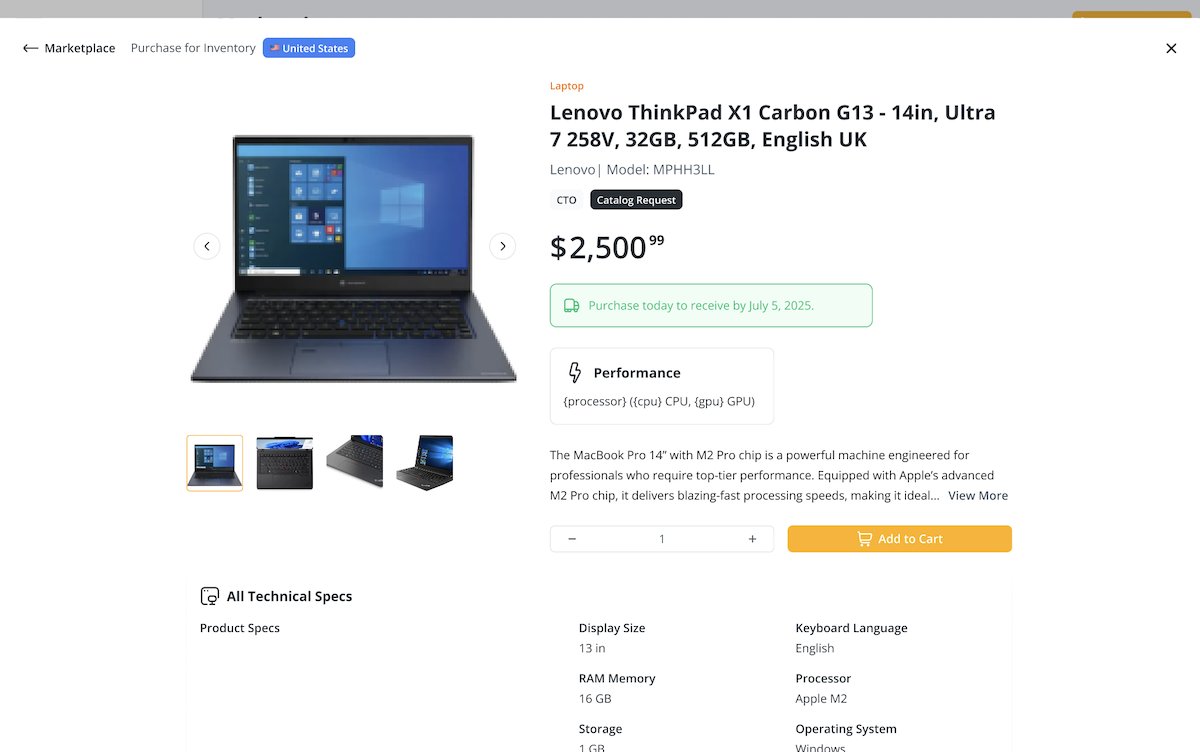
- Select a product to view its details, then select Add to Cart.
- When you’re ready to checkout, select the shopping cart icon. You’ll be able to view all products that have been added to the cart.
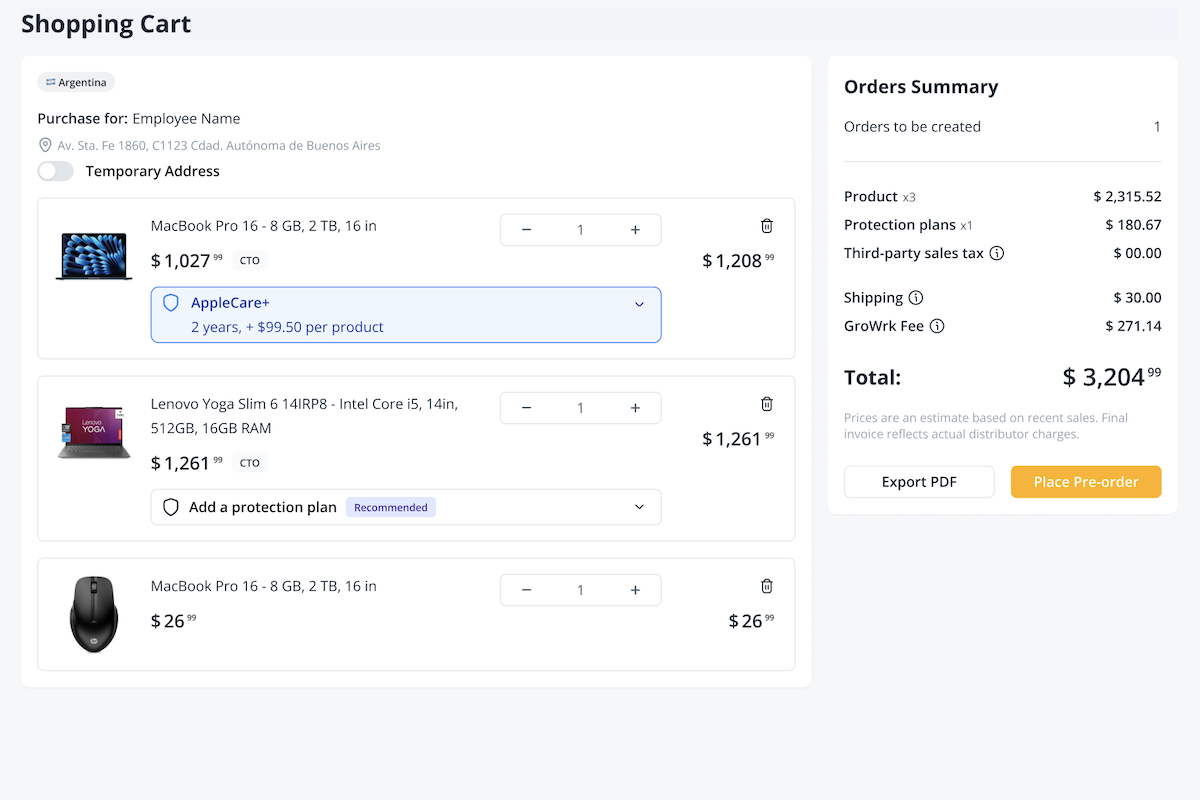
- In the Shopping Cart, you can select Export PDF to download a detailed summary of the order. The order summary will be broken down by:
- Product: The subtotal of all products in the order.
- Protection plan: Purchase add on for applicable products.
- Third-party sales tax: Charged by the local distributor on the hardware purchase. GroWrk does not set, collect, or remit this tax. It is passed through at cost and may be finalized at purchase (true-up may apply).
- Shipping: Covers delivery costs, varies based on region.
- GroWrk Fee: Covers procurement services, order handling, and logistics management related to the transaction.
For purchases placed for the United States, taxes are included in the prices for products and protection plans. The full tax breakdown will be available soon.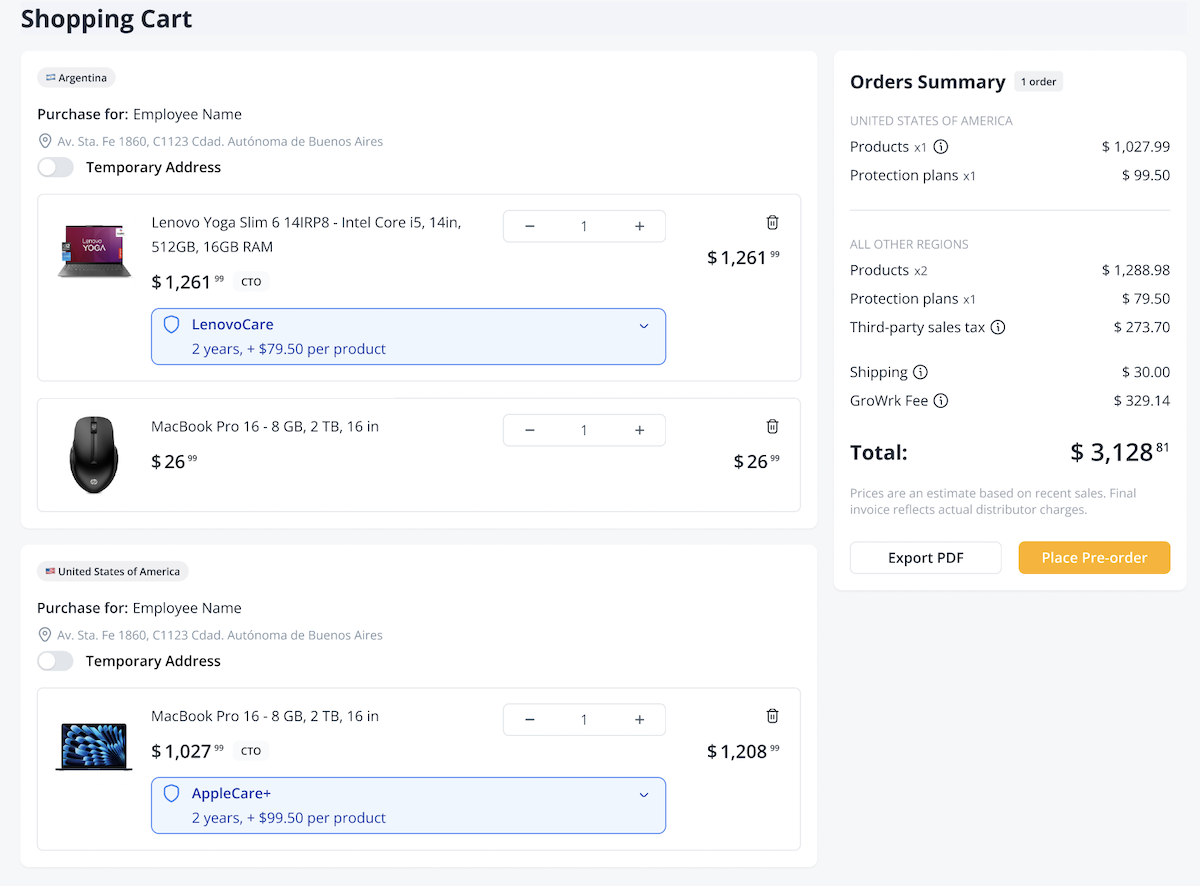
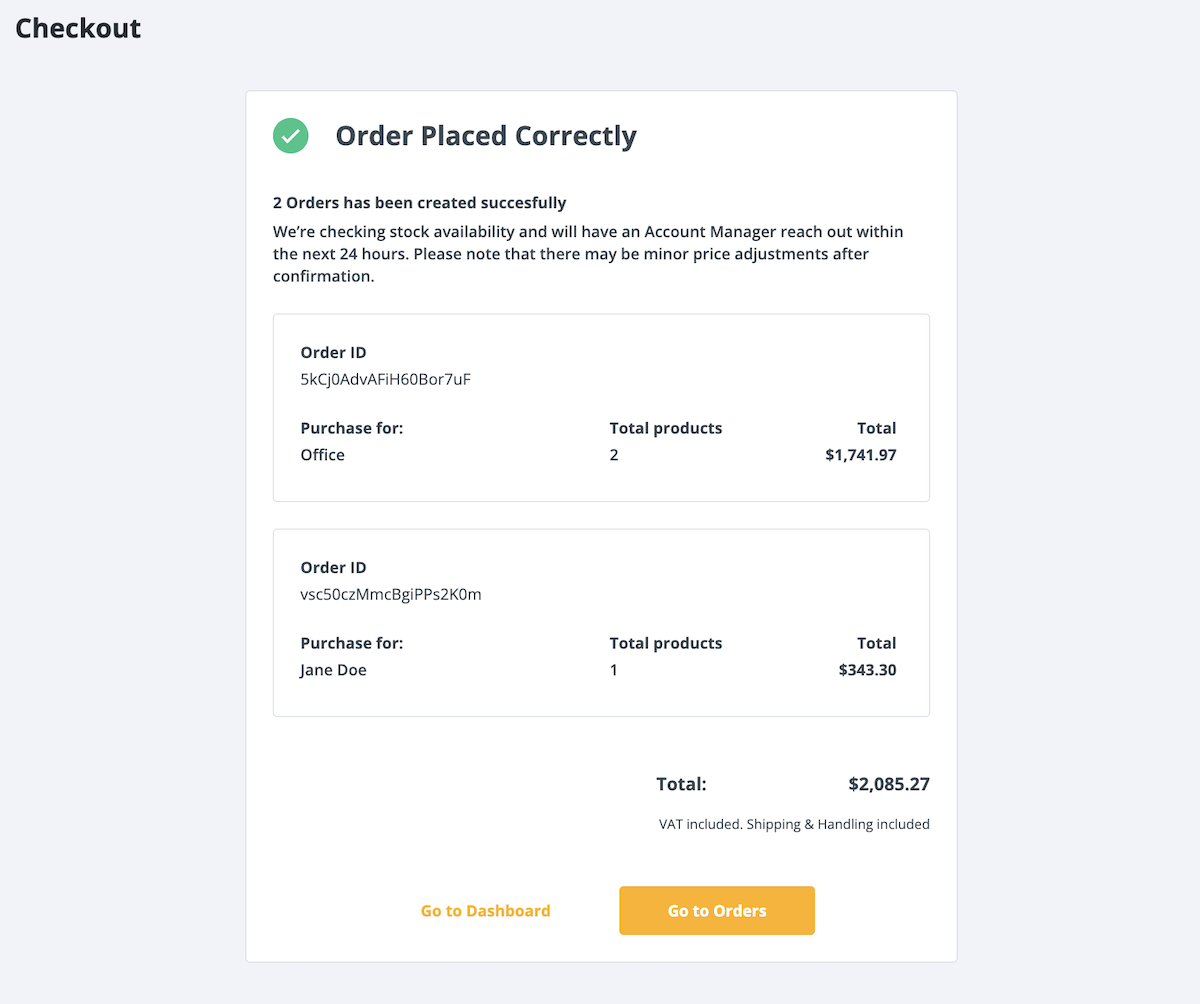
For Purchase for Employee orders, you can also use the Temporary Address toggle to add an address if the employee is currently located somewhere else. Review your order and select Place Pre-order. - You’ll receive confirmation of your order being placed. You can view details and track your order’s progress in the Orders page.
Protection plans
Protection plans can be added to applicable products when making a purchase order.
Shopping cart
If products are eligible for protection plan coverage, you will have the option to add them to the order in the Shopping Cart before checkout. Protection plan options will be listed with the corresponding product. Select View Details to view the full details for each available plan.

Protection plan details include the coverage duration, terms, and estimated price. Listed prices are based on recent sales history. If a price is marked as TBD (To Be Determined), it indicates that the specific plan has not been purchased recently. The selected plan will be quoted along with the product for your approval.
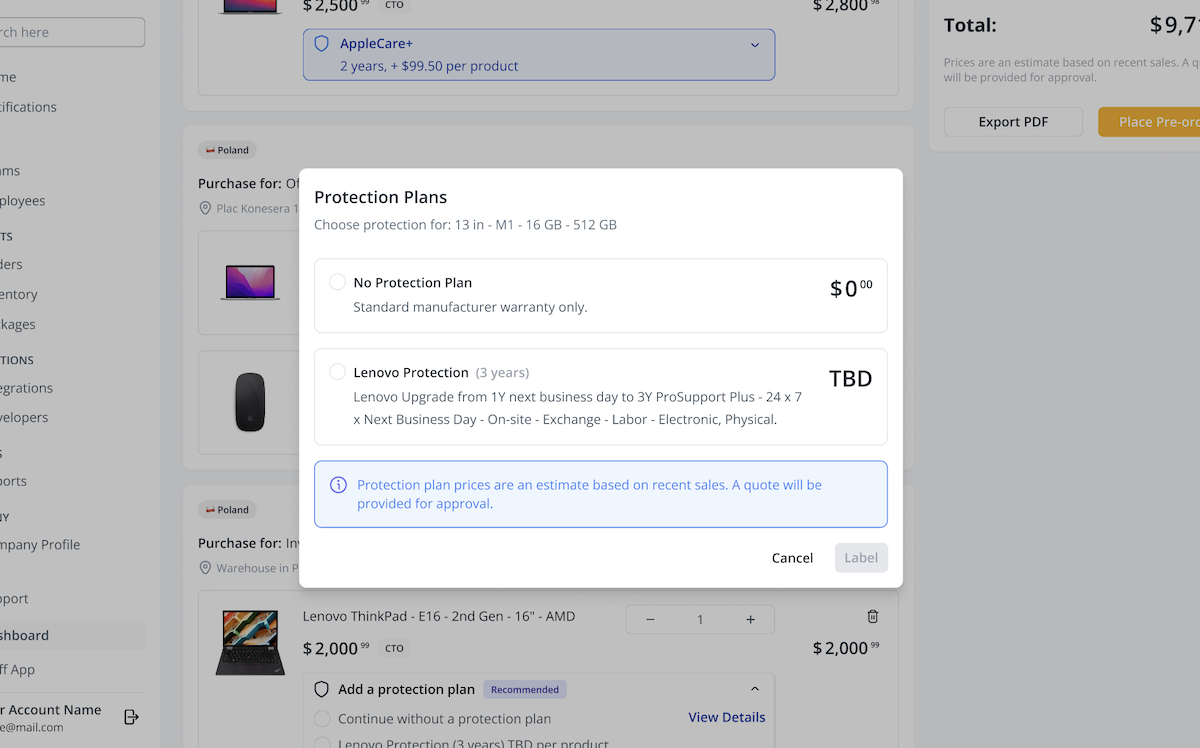
The price of the selected protection plan will be added to your total in the Orders Summary.
Order page
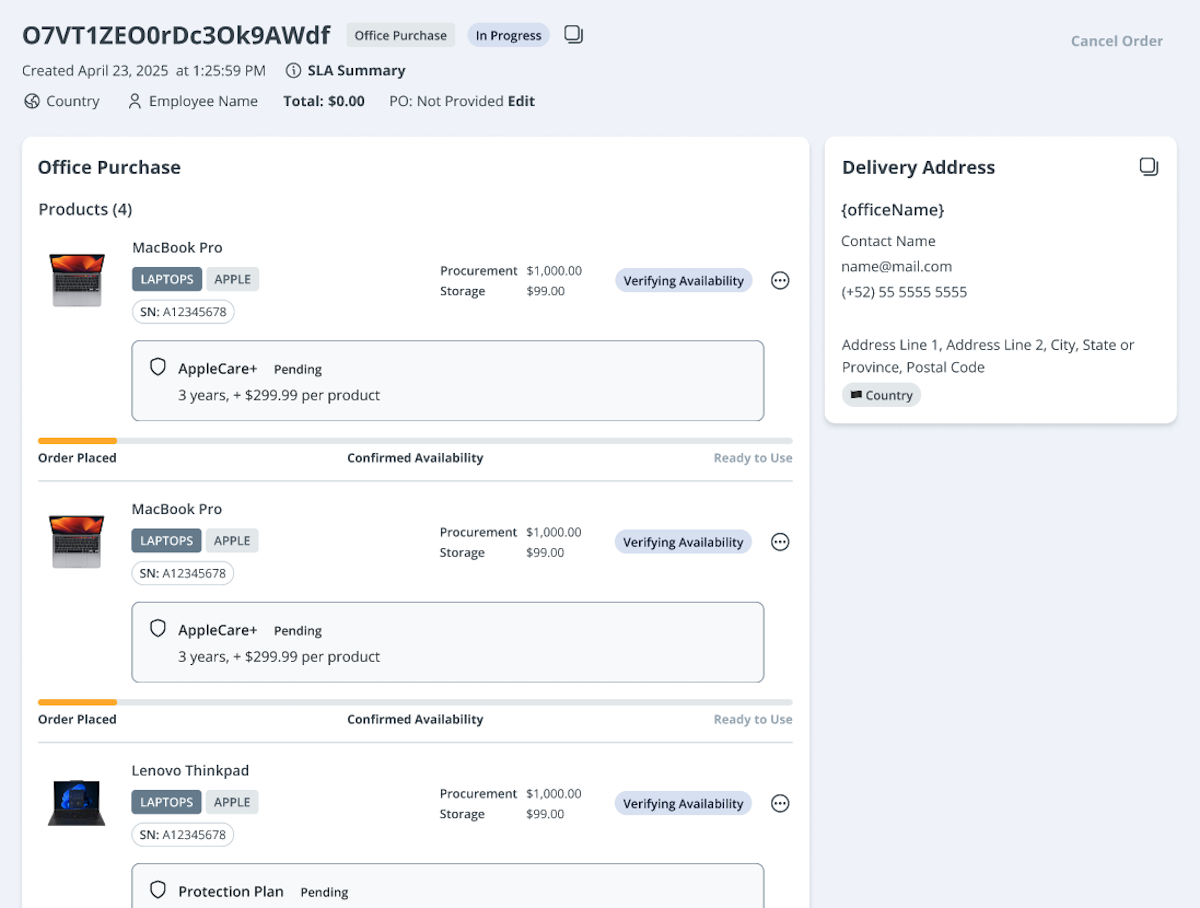
The selected protection plan will be displayed on the order page with its product. The protection plan will be listed as Pending before the order is quoted.
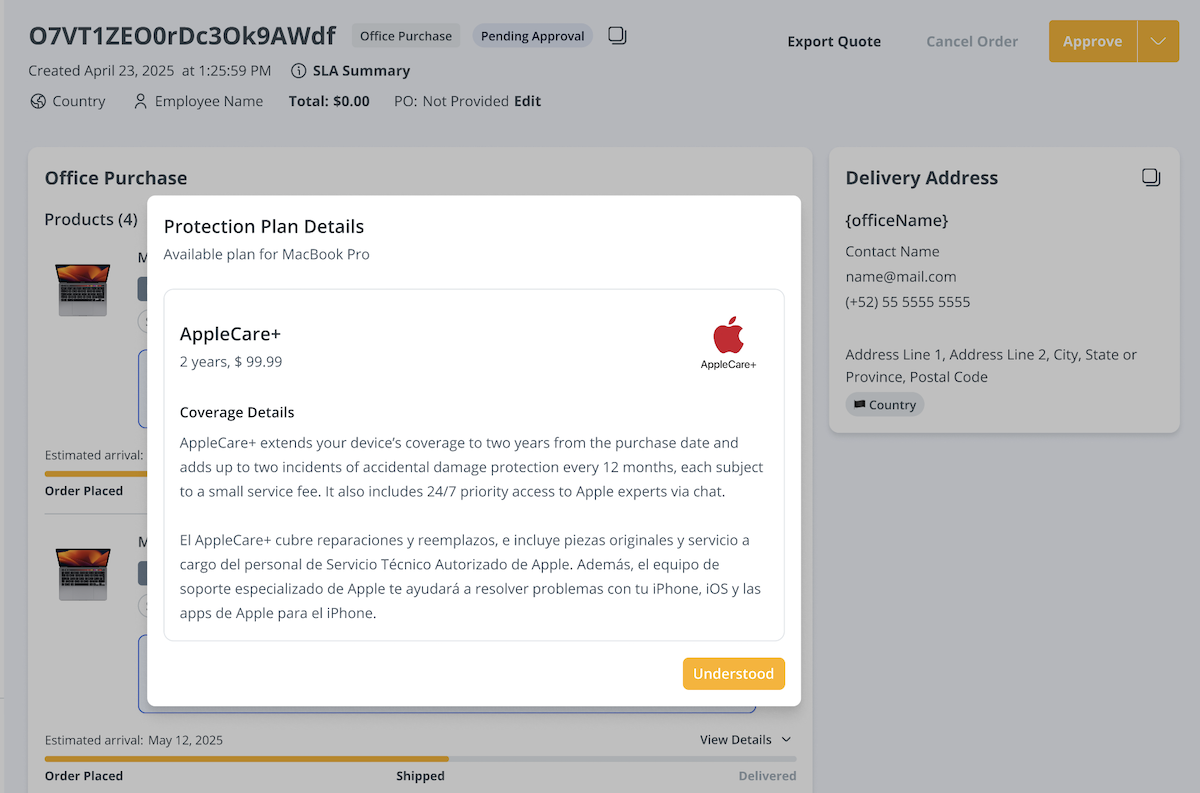
Once the product and protection plan are quoted, the price will be displayed. Select Approve to proceed with the order.
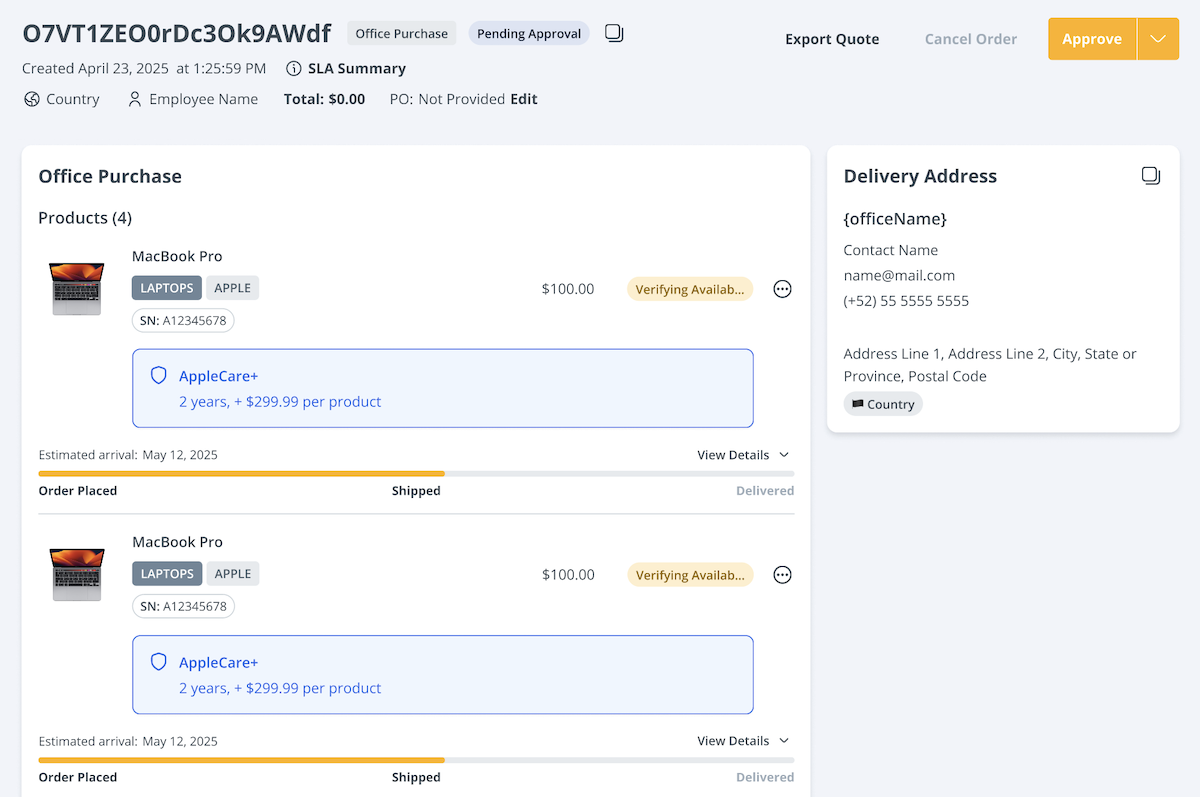
Select the protection plan to view its details, including length, price, and coverage.