Deel
Learn how to integrate your Deel account with GroWrk to improve your HR workflow.
Connect your account
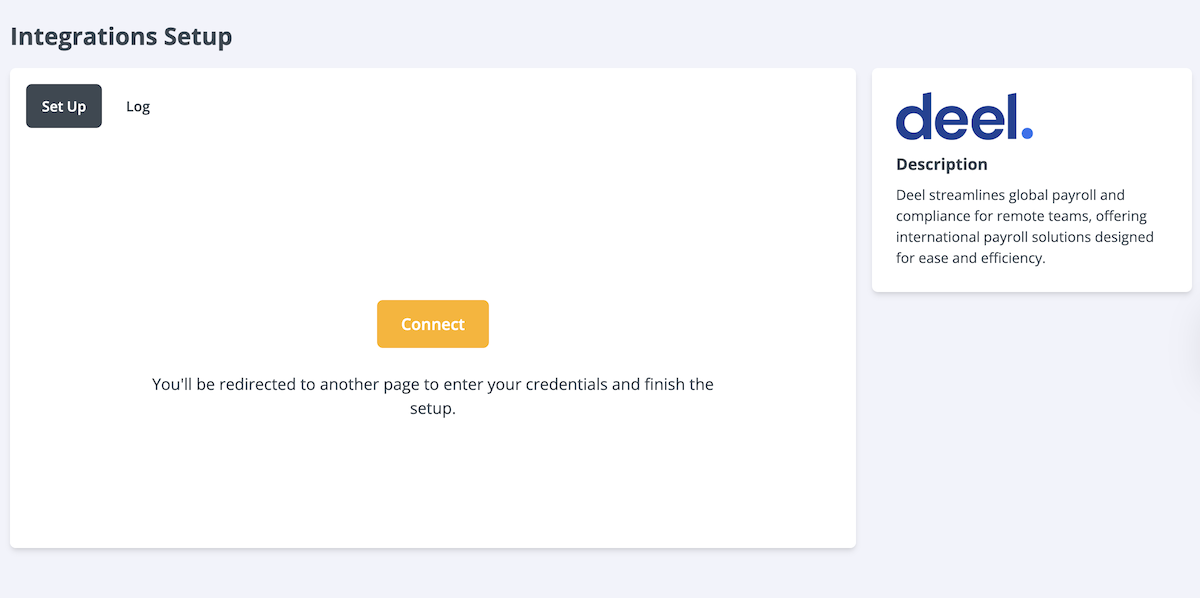
- In the Integrations Setup page select Connect.
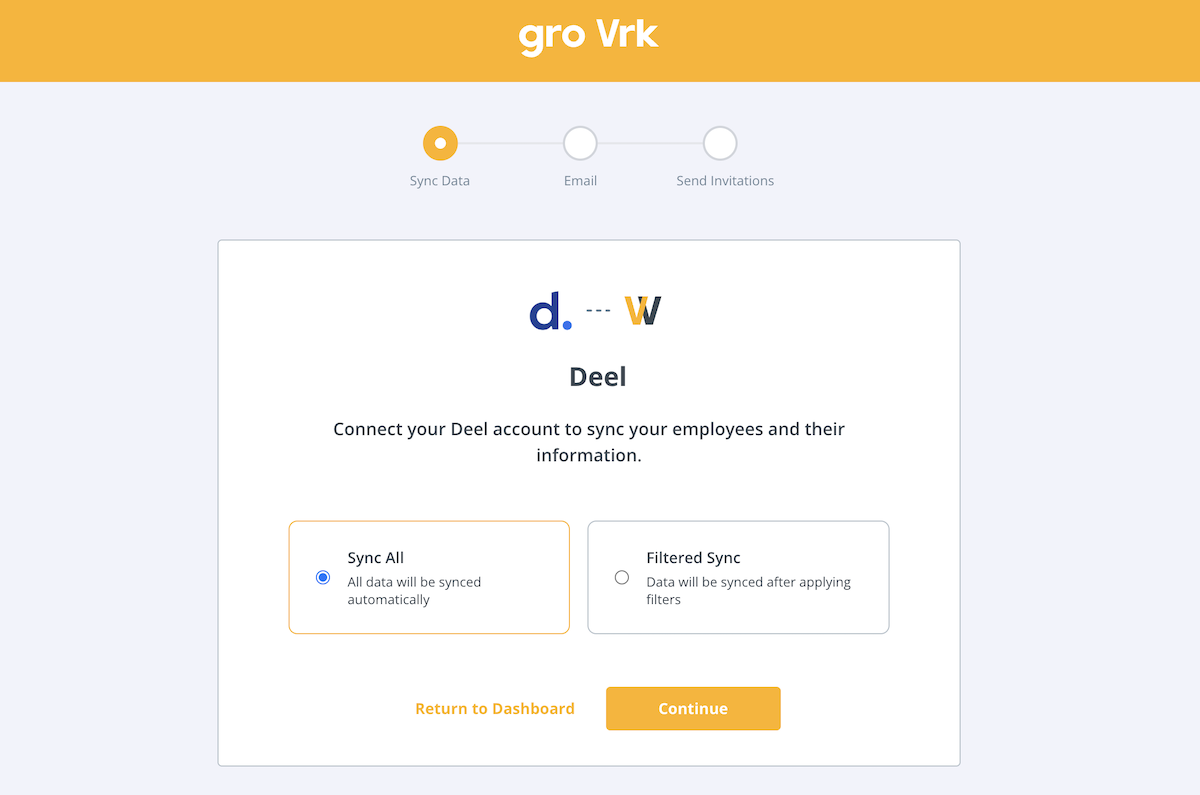
- Choose whether you’ll sync all your data or use filters to curate what data is synced to your GroWrk account. Select Continue.
- Choose whether to use your employee’s work or personal email as the main email. Select Continue.

- Choose whether to automatically send invitations to the Employee Dashboard to your employees. Select Continue.

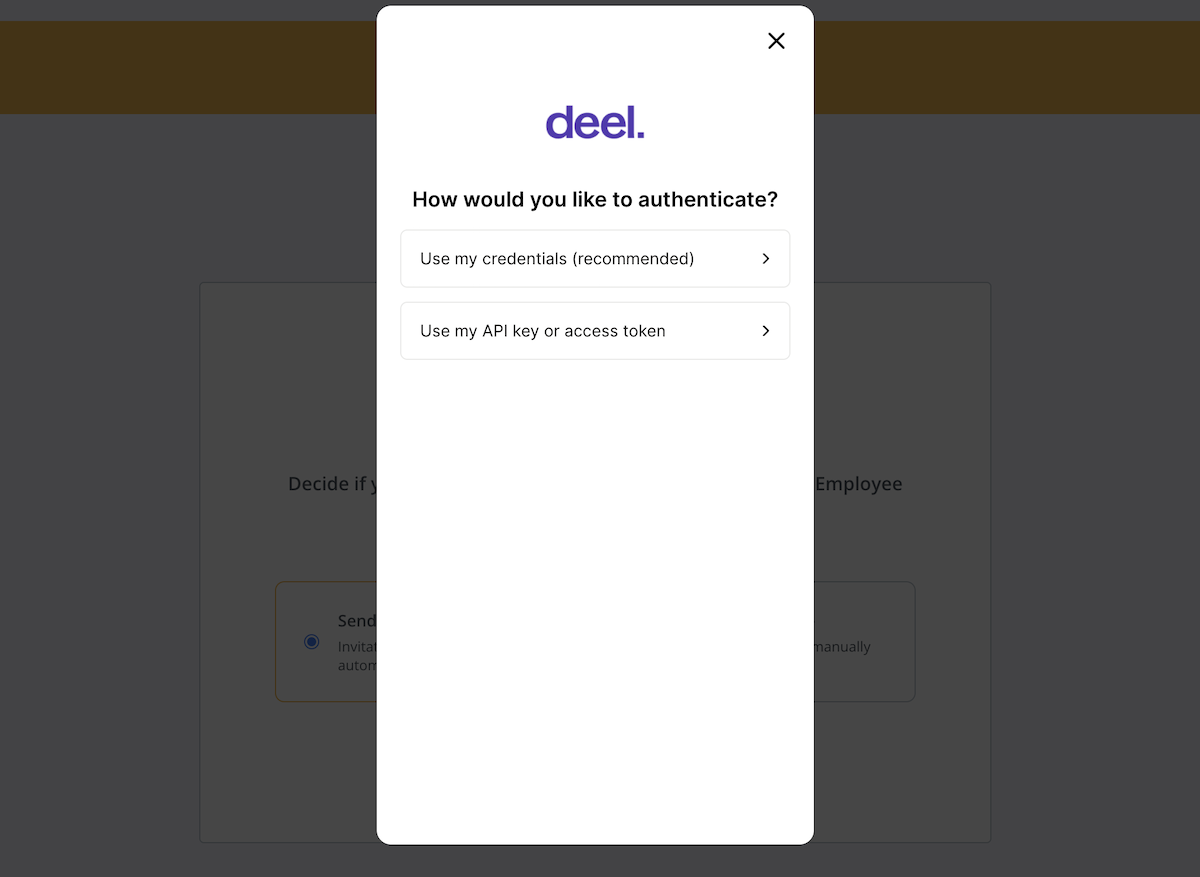
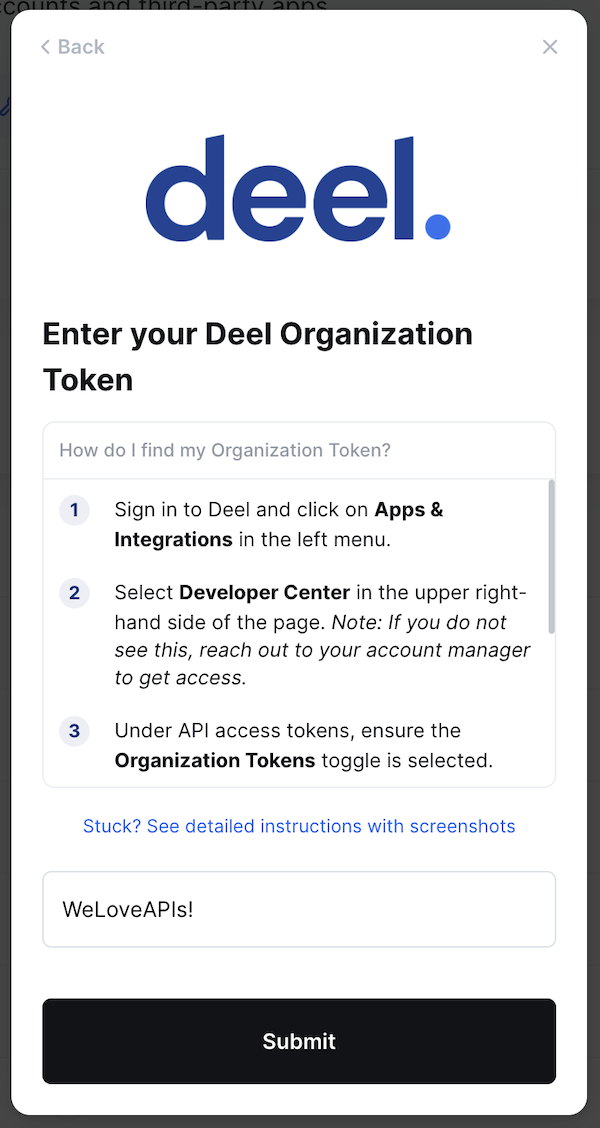
- Select how whether you’d like to authenticate. If you are using your Deel credentials, you’ll be redirected to Deel’s login page. If you choose to use an access token, see the instructions below in the next section.
Create an organization token
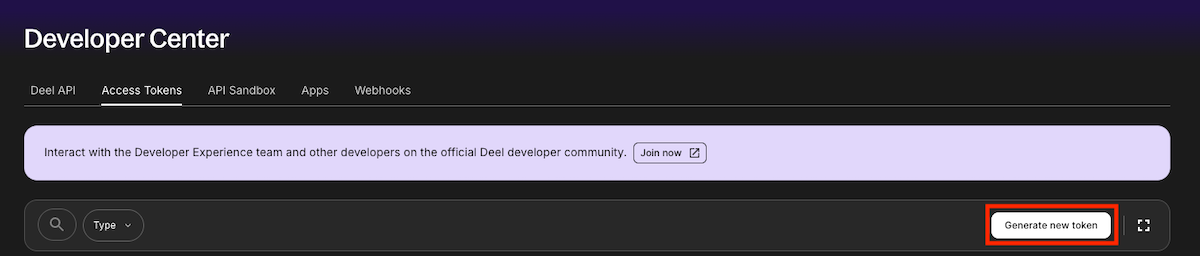
- In your Deel portal, navigate to the Developer Center in the drop-down menu from the top menu.

- Select Generate new token.
- Enter a label for your token, select Organization token (Recommended), then select Next.

- Select all scopes to add to your token. Select Generate.

- Back in GroWrk, enter your token and select Submit.
Synced fields
The following fields are synced from Deel to GroWrk:
- Full Name (Syncs with Name)
- Work Email (Syncs with Email)
- Personal Email
- Department (Syncs with Team)
- Address (Syncs with Employee Address)
- Mobile Phone Number (Syncs with Phone)
Resync
The Deel integration automatically updates every hour. You may manually resync your data using the Update button found in the Set up tab on the integration page.